Settings
General
Microphone, dictation key, text insertion, Smart Suggestions and startup.
Settings → General holds the settings you are most likely to touch.
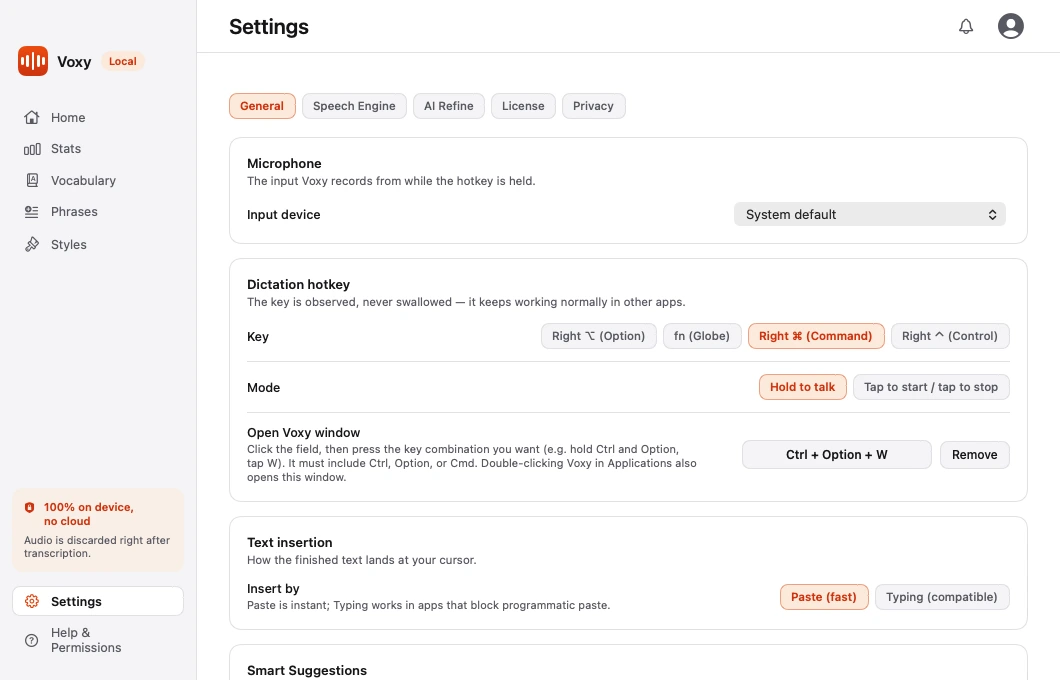
Microphone
Pick the input Voxy records from. System default follows whatever your computer is set to, which is usually what you want.
Warning Devices marked (virtual) — such as loopback or conferencing devices — usually deliver silence unless another audio app is routing your microphone into them. Pick a physical microphone. Voxy warns you in place if you select one.
Dictation hotkey
Two rows:
- Key — Right ⌘, Right ⌥, Right ⌃, or fn.
- Mode — Hold to talk, or Tap to start / tap to stop.
Covered in full on Hold or tap.
There is a third row here, Open Voxy window, which records a key combination that opens the main window from anywhere. It must include Ctrl, Option or Cmd.
Text insertion
How the finished text lands at your cursor.
| Option | When to use it |
|---|---|
| Paste (fast) | The default. Instant, works nearly everywhere |
| Typing (compatible) | For apps that block programmatic paste |
See Where the text goes.
Smart Suggestions
When a word in your dictation is not recognised by your system's own dictionary and is not already in your Vocabulary, Voxy can offer to open Correct Last Dictation so you can fix it in one tap.
It shows a notification, or a menu-bar line if notifications are off.
This runs fully on-device. Nothing is sent anywhere, and nothing is added to your Vocabulary unless you confirm the fix. See Vocabulary.
Startup
Start Voxy at login has Voxy open with your session, so it is ready without you launching it. It registers as a login item on macOS and a startup app on Windows.
About
Shows the version, the developer, and acknowledgements for the open-source work Voxy is built on.